MacTheRipper removes CSS encryption, Macrovision protection, sets the disc's region to '0' for region-free, and is capable of removing RCE region checking. Wait a second! 95% of these exited in the past, not today!
If you leave MTR in the dust for a long time, you need to update your perception to it. The current MTR is not what it used to be. The major changes are:
- License: MacTheRipper version 2.6.6 is free while MTR 4 is paid-for software (so called Send Gift).
- System requirements: MTR 2.6.6 supports Mac OS X 10.6 Leopard or older and MTR 4 supports Mac OS X 10.8 or older.
- DVD type: commercial DVD discs are not supported by the current MTR any more.
- Update: discontinued to update MTR. MacThe Ripper is an outdated option.
So, until now, if you prefer MTR easy-to-use interface and original resulting quality, you can insist on MacTheRipper for DVD ripping on macOS (older operating system). If not, resort to the below top MacTheRipper alternative to rip both homemade and commercial DVDs to MPEG2 file, as well as DVD to digital video format for playing back on mobile, Plex, Roku, TV.
Part 1: Download Best MacTheRipper Alternative for Protected DVDs
Free download the best alternative to MTR - MacX DVD Ripper Pro to 1:1 copy DVD movies to ISO image, MPEG-2 file or Video_TS folder or rip homemade & commercial DVDs to digital MP4, MOV, MKV, H264, HEVC, AVI, FLV, YouTube, Android Galaxy, iPhone, iPad, Apple TV, Plex, Roku, TV with built-in 420+ profiles. Unlike MTR, it doesn't need registeration on forum, nor send gift/Emails to the developer. Well compatible with the latest macOS Big Sur or older.
Tutorial: How to Disable Copy Protection and Digitize DVD Content on macOS
Step 1. Load DVD Movies or DVD Folder.
Run this Mac DVD decrypter & ripper and click "Disc" button to import the DVD files. You can also choose to rip DVD folder to MP4 by clicking "Path" button. After a few seconds, all DVD titles will be listed and the main title will be auto selected.
Notwithstanding your commercial DVDs are from Disney, Sony, Lionsgate, Warner Bros Picture, Marvel, etc., this DVD ripper can smoothly detect your DVD right title without errors like 99 titles, no valid source found, the drive is empty, DVD scan stuck, bad sector, playlist obfuscation, I/O error, etc. No any 3rd party decrypter is needed.
Step 2: Choose MP4 as Output Video Format.
Here we choose MP4 Video encoded with H264 + AAC from General Profiles category as output format. Don't worry about the quality. High Quality Engine guarantees you an MP4 copy with 98% quality kept, virtually no quality loss!

Note: if you want to keep 1:1 original output quality like MacTheRipper, go to DVD Backup mode, where you can choose to copy DVD with main/full title or backup DVD to high quality MKV file.
Step 3: Select Output Folder.
Click "Browse" to choose the path for output files storage.
Step 4: Start Conversion.
Click "RUN" button to begin to digitize DVD to MP4, hard drive, USB, Plex, Roku, TV, AVI, MKV, iPhone, Android, etc. You can view the conversion progress and are able to cancel the converting process at anytime.
Notice: We only advocate using this Mac DVD ripper to copy and rip DVDs under the concept of Fair Use and don't encourage any illegal reproduction or distribution of copyrighted content. Please abide by the local DVD copyright law before doing it.
Certainly, as we mentioned before, if you're a loyal fan of MacTheRipper and own a boatload of homemade unprotected DVDs, MacTheRipper is still a nice option for you to easily rip unprotected DVDs and region code DVDs. Read the following guides.
Part 2: How to Use MacTheRipper to Rip Region Code DVDs
Step 1: Download and install MacTheRipper.
After download free DVD ripper for Mac, then install it, simply mount the .dmg archive by double-clicking it, and copy the Mac The application to your Applications folder (or wherever you want it ), along with this " Manual" if you need it.
Step 2: Convert DVD for free.
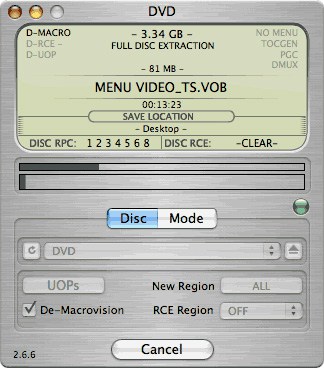
Run the software, and insert the source DVD disc. Then, you should set the RCE options if applicable. If it displays 'DISC RCE: -CLEAR-' after scanning the DVD in the drive, you can leave the 'RCE Region' popup menu 'OFF', as it is by default. Only (and always) set the 'RCE Region' to 'OFF' when it says that RCE is '-CLEAR-'. Note that new movies on DVD are probably not supported.
Step 3: Finish extracting movie from DVD
After above processing has been done, You can find a folder in the save location. The output files are saved as .VOB format.
Note: If the program displays "DISC RCE: -DETECTED-", you must set the option to the region in which the DVD was purchased. For example, if you have a DVD that was purchased in N. America (Region 1), and MacTheRipper says that RCE is detected, you must set the 'RCE Region' popup menu to 'RCE 1".
Once you've selected the type of extraction and options you want, you can go back to the 'Disc' tab and click the 'GO!' button (or hit the 'Enter' or 'Return' key) to start the best DVD ripper for Mac movie extraction process. If you are a loyal fan of Mac The Ripper, you're advised to vote for it in the top free DVD ripper 2017 competition. Now, its marks fall behind MacX DVD Ripper Free Edition and handbrake.
Part 3: MacTheRipper DVD Ripping Problems & Solutions
As you ripping DVDs following the steps above, you got your copy-protected DVD movies ripped or copied in general. But sometimes you may also find that there are some annoyance happened by chance. For example, the MacTheRipper bad sectors problem often occurs when you try to convert an old DVD movies to play on your new purchased iPhone iPad. Or you find that you cannot play your MP3 files ripped from DVD with it. On an issue like this, what can you do? Here I gather the FAQ and solutions about the tool. Of course, an one-stop solution to all problems is also provided, just keep reading.
 Region Problem |
 Bad Sectors |
 Audio Extract |
 VOB Files Playback |
 One-Stop Solution |
1. How to Rip DVDs Out of Your Region
As you insert a DVD disc that is out of your region, there will pop up a window, telling you the drive region and DVD disc are not matched. Then you'll find MTR grows gray and unable to read your region protected DVD.
Solution: Generally, you cannot rip DVDs out of your region with MacTheRipper without changing your DVD drive region. To change the drive region:
- Insert a disc to your Mac DVD drive and follow the window that promots you to choose a DVD region code for your disc. Only 5 times can you change DVD region.
- If you have piles of region protected DVDs, you'd better turn to a DVD ripper which can remove DVD region code automatically when ripping the DVD movies.
2. How to Fix Bad Sectors Error
Sometimes you've finished ripping the DVD. However, the videos can't be played normally and some segments are missing.
Solution: There are various reasons causing bad sectors, the only thing you need to do is to suit the remedy to the case.
- If it's dirty or moistered, fix the problem by cleaning the DVD disc.
- If it get scratched or damaged, there will be some glitches on the output videos. So fall back on a DVD repairing tool to fix DVD scratches.
3. How to Extract Audio from DVD
MacTheRippr allows you to extract DVD audio and save it in AC3 format, but how to extract DVD audio with MacTheRipper?
Solution:
- After DVD loaded, click "Mode" and switch to "Title Only Extraction", or select "Title - Chapter Extraction" if you want to extract a single audio from the entire title.
- Select the "D" button, click "Streams" and then select the AC3 track you want as below.
- Go to "File" and select "Save to" to set a folder to save the converted files. Click "Go" to start the audio extraction.
4. How to Play VOB Files on macOS
The truth is MacTheRipper can only remove the DVD copy protection and extract DVD to .VOB format. How to play them on Mac?
Solution: There are two ways to solve VOB files playback problem: Turn to a top-rated meida player such as Apple DVD player, 5KPlayer or VLC Media Player; or convert VOB files to MP4, MOV, M4V or any video formats accepted by QuickTime with a superb video converter.


Bella has been working with DVD digitization for over 12 years. She writes articles about everything related to DVD, from disc drive, DVD copyright protection, physical structure, burning and backup tips. The unceasing passion of DVD movies helps him build a rich DVD library and ensure a practical solution to address almost all possible DVD issues. Bella is also a crazy fan for Apple products.