



Home > MacX DVD Ripper Pro > Rip Copy-protected DVD or Encrypted DVD on Mac OS X

When you reach this page, it means that your DVD is copy-protected or encrypted by DVD copy-protection technologies.
Then what is DVD copy protection or encryption ?
DVD Copy Protection (DVD DRM, DVD Encryption) is a blanket term for various methods of copy protection for DVDs. Such methods include DRM, CD-checks, Dummy Files, illegal tables of contents, over-sizing or over-burning the DVD, physical errors, and bad sectors. Many protection schemes rely on breaking compliance with DVD standards, leading to playback problems on some devices.
- Quote from Wikipedia
"Splitting Speed, Untouched Quality, Support Encrypted Sony Disney DVDs";
How to choose the right solution for ripping Sony DVDs, Disney DVDs copy protected by latest DRM tech on Mac OS ? The capability of ripping all the latest encrypted DVDs absolutely should be the most important factor for consideration, as well as multiple options of output formats and super high output quality video for iPhone, iPad and Android.
MacX DVD Ripper Pro is on par with what you expect from the best DVD decrypter, DVD ripper and DVD converter. Three-in-one, this top-rated DVD ripper for Mac has ability to decrypt all types of DVD copy protection tech, such as CSS encryption, Sony ARccOS encryption, RCE Region protection, Disney X-project DRM, UOPs, etc. on MacBook (Pro/Air), iMac, Mac Mini and rip Sony DVDs , Disney DVDs to MP4 MKV MOV, iPhone iPad, Android, PSP, Xbox One, etc. It constantly updates to support the latest copy protection measures.
Without any third party help, this Mac DVD ripper software enables to perfectly handle the newly released Disney DVDs like Encanto, Thor: Love and Thunder, Lightyear, Doctor Strange in the Multiverse of Madness, Hocus Pocus , etc. as well as other hollywood movies e.g. Top Gun: Maverick, Fantastic Beasts 3, Jurassic World Dominion, Minions 2, Operation Fortune, Babylon, etc. So it would be a perfect solution for you if you want to rip Sony DVD, Disney DVD and all the Hollywood DVDs with DRM protection on Mac OS.
Moreover, this top Mac DVD decrypter also works as a perfect DVD ripper and converter to rip encrypted DVDs to MP4, MOV, MKV, AVI, ISO image, MPEG-2 file, FLV, MP3, etc. digital format with zero quality loss attributing to its inherent High Quality Engine and de-interlacing tech.
70% of those who used our DVD ripper software upgrade to MacX DVD Ripper Pro Edition


Time-limited Special Offer: $59.95, $39.95


MacX DVD Ripper Pro Main Features:
List of DVD Copy Protection technologies ( MacX DVD Ripper Pro supports all of those types)
List of Latest Copy-Protected DVD Movies from Disney, Warner, Paramount & Sony. (MacX DVD Ripper Pro supports all new encrypted DVDs )
 |
 |
 |
| Warcraft | Finding Dory | Capitan America: Civil War |
 |
 |
 |
| The Jungle Book | The BFG | Suicide Squad |
Now, you can use MacX DVD Ripper Pro to rip the latest protected DVDs such as Disney the BFG, Finding Dory, Suicide Squad, Captain America: Civil War, etc. It shall be noted that ripping and converting commercial DVDs are only for personal legal use. Please comply with your local DVD copyright law and apply the DVD contents for fair use.
Step 1. Load DVD Movies or DVD Folder.
Prior to ripping copy protected DVDs, you need to download and launch this DVD ripper at first. Then click "DVD" button on its main interface to import the DVD files after you insert the DVD disc you want to rip. You can also load DVD Folder or DVD ISO saved on your computer.
Step 2: Choose Output Video/Audio Format.
Select the output video or audio format you desire. You could choose the video formats and portable devices as you need, such as MP4, FLV, AVI, MPEG, MOV, iPhone, iPad, Android etc. BTW: if your disc is the newest released DVD like Disney Finding Dory, you're advised to tick "Safe Mode" at the lower right corner of the main interface, which will help you automatically select the DVD movie title and guarantee a smooth DVD ripping process, no annoying crashes or frozen.
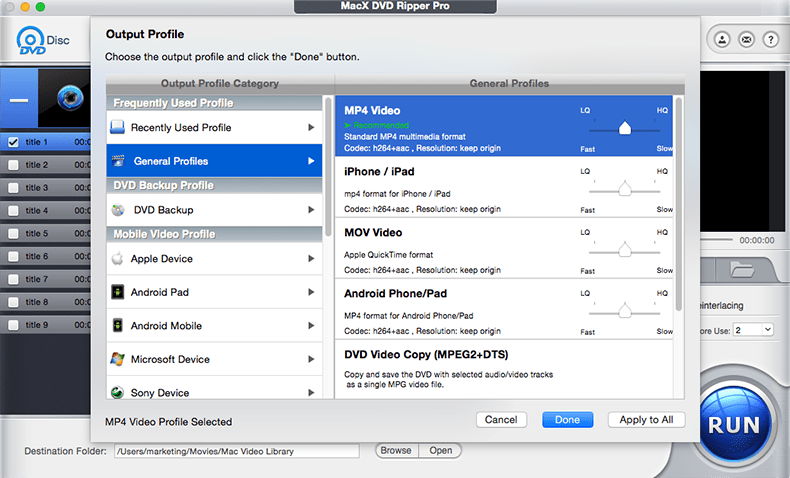
Customize The Output Video (Optional)
It offers multiple options for you to make personalized videos as you desired.
* Trim segments, Crop video size, Merge file
Trim - If you'd like to convert a segment of the DVD movie, you can trim the clips by dragging the left or right bar under the video preview windows or setting up the start time and end time by using trim feature
Crop - the Crop & Expand windows allows you adjust your movie's aspect ratio to Full Screen, 16:9, 4:3, 1:1, and you can also cut off the black edges you don't want to keep.
Merge - You might want to keep only some of video clips as a single video one. Select the wanted titles from the main window, chosse the status 'On' for merge.
* Adjustable Parameter Settings
For Advanced users, this DVD ripper for Mac gives you the choice to adjust the decoder/encoder parameters to suit a particular use. The output settings can be tailored in terms of video codec, video bitrate, frame rate, aspect ratio, resolution etc.
* Add External Subtitle File
You can attach your preferred language to the movie files so as to watch them with understandable speaking. Open the Subtitle tab and select "External Subtitle File" button to add the language subtitle you preferred.
Step 3: Select Destination Folder.
Specify an output folder on your computer to save the output files. Click the "Browse" button to choose the path where you want to save the output files in.
Step 4: Start Conversion.
After finish the above steps, click the "RUN" button to start DVD to digital video conversion, you could view the conversion progress and are able to cancel the converting process at anytime.
Notice: We only advocate using this Mac DVD ripper to copy and rip DVDs under the concept of Fair Use and does not encourage any illegal reproduction or distribution of copyrighted content. Please abide by the local DVD copyright law before doing it.
I had the problem of converting some format. E-mail:support@macxdvd.com
Home | About | Site Map | Privacy Policy | Terms and Conditions | License Agreement | Affiliate | News | Contact Us
Copyright © 2026 Digiarty Software, Inc (MacXDVD). All rights reserved
Apple, the Apple logo, Mac, iPhone, iPad, iPod and iTunes are trademarks of Apple Inc, registered in the U.S. and other countries.
Digiarty Software is not developed by or affiliated with Apple Inc.